What Does Collate Mean When Printing?
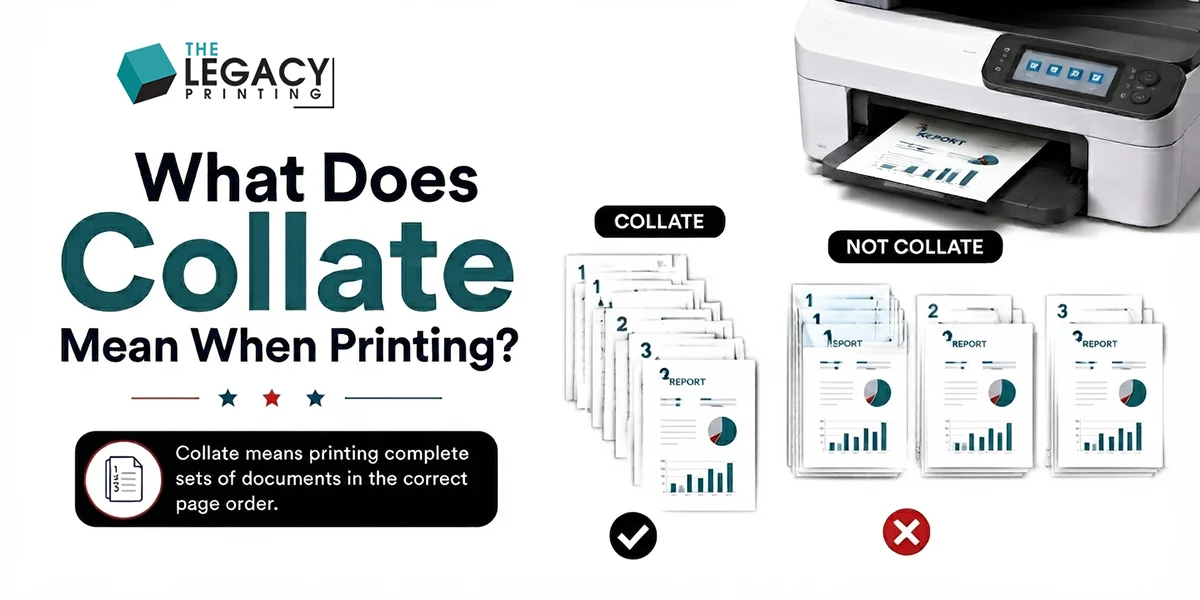
When you have a multi-page document to print, you may come across a print option named Collate. This option determines the order your pages print in. Let's say you are printing a 5-page report, and you want 10 copies of it.
If you were to check collate, pages 1-5 would print, and then it would start over again until you have 10 copies of your report. If you do not leave it checked, then you will get ten copies of page one, then ten copies of page 2, etc.
You have to remember to collate the pages. Collate is also a great setting for multiple page inserts, instructions, and booklets that go into your custom boxes from Custom Box USA. In years past, it was not easy to print these, then sort, then collate. This was very time-consuming and left room for error. We are happy to say that we have an automatic collate setting to help make your life easier!
How the Settings Work
There are only 2 options available: Collated and Uncollated.
Collated (On)
If you turn on the collate function, sets of complete copies are printed in order.
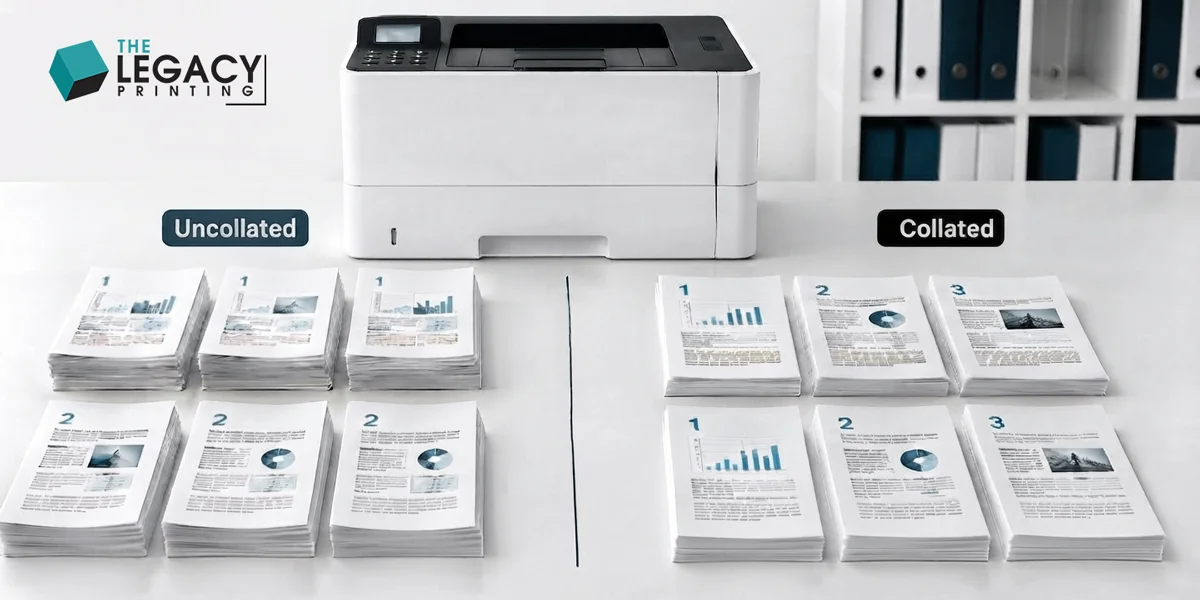
The paper would be tripled, and then the order would be: 1, 2, 3 → 1, 2, 3 → 1, 2, 3. All groups are exact copies of the document.
Uncollated (Off)
When you turn off the collate function, the printer keeps all pages together.
If you have a 3-page document, then the order would be: 1, 1, 1 → 2, 2, 2 → 3, 3, 3. This may help you to get a stack on the same page without complete document sets.
Collated vs. Uncollated Printing
The difference might not be significant for a short document. If the document is long and/or many copies are to be made, though, the time and effort saved by setting the print job up properly could be considerable.
|
Collated |
Uncollated |
|
|---|---|---|
|
Page Order |
1, 2, 3 / 1, 2, 3 / 1, 2, 3 |
1, 1, 1 / 2, 2, 2 / 3, 3, 3 |
|
Best For |
Booklets, reports, manuals, presentations |
Flyers, posters, single-page handouts |
|
Ready to Distribute |
Yes, immediately |
No, needs manual sorting |
|
Common Use Case |
Multi-page documents read in order |
Standalone pages with no sequence |
How to Turn On Collate When Printing
Most of the programs collate in the same way, but there are a few differences, and collate is a feature in the print dialog, not in the document itself.
In Windows: Open the document and press Ctrl + P, choose the printer, indicate the number of copies, and make sure that the Collated option is checked or not. By default, it is usually enabled when you send more than one copy. Choose Collated or Uncollated, and click Print.
On a Mac: Use the Cmd + P shortcut; if necessary, click Show Details and set the number of copies and click on Go, then tick the box next to Collated. It should appear in most programs on a Mac by default, such as Word for Mac, Pages, and Preview.
In Word: In the print dialog, just set the number of copies and then choose Collated or Uncollated, depending on the desired option, and then click OK - Word will collate them for you.
In Excel: Go to File > Print and choose Collated or Uncollated in the same way as in Word.
Adobe Acrobat or Reader: Ctrl + P (Cmd + P on Mac) and check the Collate box when choosing Copies.
In Google Docs: In the File > Print menu, set the number of copies in the preview window. By default, Google Docs automatically collates and does not give an option to change this.
When printing from a browser: Ctrl + P (Cmd + P) will open the print window, where you need to change the number of copies to more than one to enable collation.
These steps are the same for most printers, but HP, Canon, Epson, and Brother each have their own set of instructions for the collation function.
Collate Option Not Working? What to Check
Sometimes a printer does not collate properly, even when the collation option is on; it is usually one of a few reasons. Windows print drivers are usually the culprit and are often outdated or corrupt, so it's probably something that can be resolved by downloading an updated driver for the printer.
A printer/computer that requires a restart. This seems obvious, but if a print spooler is malfunctioning, collate options are often overlooked in the process. It could be an issue particular to one application; if a printer collates fine when a different application's print function is used, then it is quite possibly a print option issue particular to the one program, and not the printer itself. Test the other application to see if it has the same problems.
There could be an issue with printer firmware. If an office printer or copier that is connected to a network needs an update, then the firmware for the printer or copier may need to be updated to support a recently released operating system or application update that affects collation.
When to Use Collated Versus Uncollated Printing
The decision between collated and not collated is entirely based on what is being printed, and how it will be used when it is printed
Use collated printing for
- booklets, catalogs, or any kind of product guides
- training manuals, or employee guides
- multi-page contracts and proposals
- handout packets for conferences or seminars
- test booklets or exam packets
- invoices, statements, or any billing statements that require organized customer records
Use uncollated printing for
- a single page flyer or poster
- anything you intend to sort through or bind separately
- forms that are the same, but meant to be distributed individually
- projects for which the order of the pages does not matter or have no bearing on each other
Collating and Binding Are Two Separate Things
This is one of the most common misconceptions, and it is important to note that collating is actually separate from binding; a document can be collated, bound, neither, or even both. To illustrate the difference, a book of notes could be bound (padded down on one side), but not collated, because each note is the same length and there is no need to preserve the order.
A bound and collated multi-page report, on the other hand, has pages in the correct order and is then stapled to preserve that order. It's good to know the difference, especially when it comes to things like printing, because you might not get exactly what you were going for when you request "collated and bound" or "bound". Knowing the distinction is helpful in the same way when it comes to custom packaging boxes with instruction booklets.
Does Collating Matter In Print Cost?
Collating on a home or office printer is a setting and not an additional service; commercial print shops are another story. However, depending on how many sets are being printed, there may be a small additional charge for sets that have been collated, depending on how automated the print shop's equipment is; hundreds or thousands of sets of collated pages still take machine time. However, collating is a quick question to ask your printing partner before beginning a large print project, or it's a service that is included with any multi-copy print jobs and isn't charged for separately. This is for most print jobs, but it's good to confirm
The origins of the word “Collate”
It’s a long history, spanning far beyond what one’s report would ever hope to achieve. The Latin verb collate breaks down into the two elements con– and latus, meaning “together” and “carried/borne,” respectively, from which Collate comes. It is first attested in the mid-1500s, when it takes on its juridical meanings. It wouldn’t gain its modern use in bookbinding, printing, and typography as “the leaves or sheets composing a book” until the late 18th century.
As is only fitting, it is a long history that the printing press has a claim to being one of the most important printing innovations in history that also happened to involve collating as page counts grew exponentially.
Industry benefits of Collated Printing
The collated printing function is beneficial in different industries where multi-page printed documents are produced. First, in commercial print shops, collating is a vital process for making a report and manual with a specific page order. Further, book printers utilize the collated printing option to attach gatherings of sheets (signatures) together in a particular order.
Besides, paper-based packaging manufacturers can use the collated printing function. They must be able to bundle different pieces of paper, such as inserts, leaflets, booklets, and packaging components into a convenient package. Collated prints can be used in educational institutions and business organizations as well. It can be utilized to create course projects and tests, leaflets and brochures, and other printable material as sets of pages.
Industrial Book Collation
While for you collating is probably something that happens in the background every time you print anything out at work, in the world of commercial printing this labor-intensive process leaves its own potential for error, with an eye towards the waste of an entire print run if a single signature is out of place.
The large sheets of paper that will become the finished book are folded into groups of pages called signatures (often made up of 4,8,16 or 32 pages folded together) and printed with collation marks, guides for the bindery to ensure the section being sewn or glued into the final book format has been gathered correctly before binding and finishing.
Collation marks are often small black rectangles on the folded edge of the section that decrease in size going up or down the binding spine so that if the book blocks have been gathered correctly, these collation marks will create a staircase along the spine of the bound book.
The Benefits of Collating When Printing
The next time you print out multiple copies of a document that has multiple pages, you’ll know to check the collate function so that the pages actually end up being in order!
For instance, if you had 5 pages of a report that you wanted to print out, a collated printer would give you five copies of your report with pages 1, 2, 3, and 4 in order.
The benefits of using the collate function are as follows:
Saving Time: No need to sort pages afterwards
Organized Workflow: Having everything organized into sets for easy distribution
Preventing mix-ups of pages from separate documents as well as preventing any pages from being lost
Tips for Successful Collated Printing
A few simple checks before printing can prevent a mountain of disorganized papers from taking up space on your desk
Review the Collate setting
Check your printer settings to ensure that it is either set to Collated or Uncollated (depending on your needs) before hitting Print. If you want sets of papers, make sure that the setting is on Collated
Name Your Files Clearly
Give your files clear names that explain their contents
It will save you time in the long run. Simple names such as Product-Manual.pdf or Customer-Instructions.pdf are much better than nondescript names.
Verify Page Order
Before sending data to the printer, it is essential to verify that the pages to be printed are present and in the correct order.
Use an online design tool
Using an online design tool will save you time and effort by allowing you to preview the pages you want to print before sending them to the printer. It will also help you to organize your work and see what the final version of your printed project looks like before putting in the effort and spending a lot of money on a commercial print job.
Request assistance
If you have any questions regarding the imposition or booklet finishing before printing pages, you need to contact your printer for assistance. It’s always a good idea to ask for help before printing hundreds or thousands of pages.
How many signatures are required on a book?
If you are preparing to print a book for your company, remember that the number of pages in the book is not the only thing that matters. Commercial book printers classify the pages of a book in sections called signatures.
For example, if you want to print a 320-page book, you need to find out how many pages you need to print if you plan to use 16 pages per section. In this case, you must print 20-page sections. Remember that the 16 pages in the section will contain 32 pages, so you need to buy 10 section sheets. The size of the book’s section depends on the type of print, paper size, and book design. It is best to leave the task of calculating the number of sections to professionals at a commercial printer.
Get in Touch
Custom Box USA provides paper packaging and print services depending on clients’ needs. From instruction sheets to product inserts or printed booklets, collating matters because it allows better organization and therefore a more pleasant experience for the end-user. It also gives a nice touch to your printed materials.
FAQs
What is the collate function in book printing?
The collate function allows the user to print multiple copies of a multi-page document as one booklet. The pages within sets are in the correct order.
What’s the difference between collated and uncollated printing?
It depends on what kind of documents you want to print. In most cases, collated is the best option if you want to print reports, instruction manuals, booklets, and other multi-page documents.
Does collating mean binding?
Collating does not mean binding. Although collating will arrange your pages in order, you will need to bind a set of pages together to make a booklet or a book. You can bind your book by using staples, glue, and metal fasteners.
Do you charge extra for collating?
In most cases, collating is an optional setting, whereas most desktop printers provide the option to collate for free. However, some commercial print shops charge extra for finishing and sorting booklet sets. It is advisable to confirm with your preferred printing company if they provide collating as an optional feature.
What is a signature in book printing?
In book printing, the term signature refers to a group of pages printed on large sheets of paper and bound together to form a book. There are different types of signatures, but most book binders use section sizes of 4, 8, 16, and 32 pages depending on the printing machine.
Is collate on or off when printing?
When you want to print a booklet or a set of pages, you will need to turn on the collate function so that your printer prints your pages in order. In addition, when you print your documents, you can also turn on the collate function to print all copies of each page together.
Final Thoughts
Collate is almost a forgotten option in a printer’s menu, but it can be of much use when printing multiple copies of a multi-page booklet or document. The same applies when preparing any other printed material. It is always essential to have the necessary instructions on the print layout so that the printed material is perfect for the end-user.
The Legacy Printing offers custom printed boxes & packaging services according to your products and packaging needs. We produce custom product packaging & printed components as you need them. Having the right collating options at the beginning will save you lots of time and money in the process of preparing your printed material for the end-user.